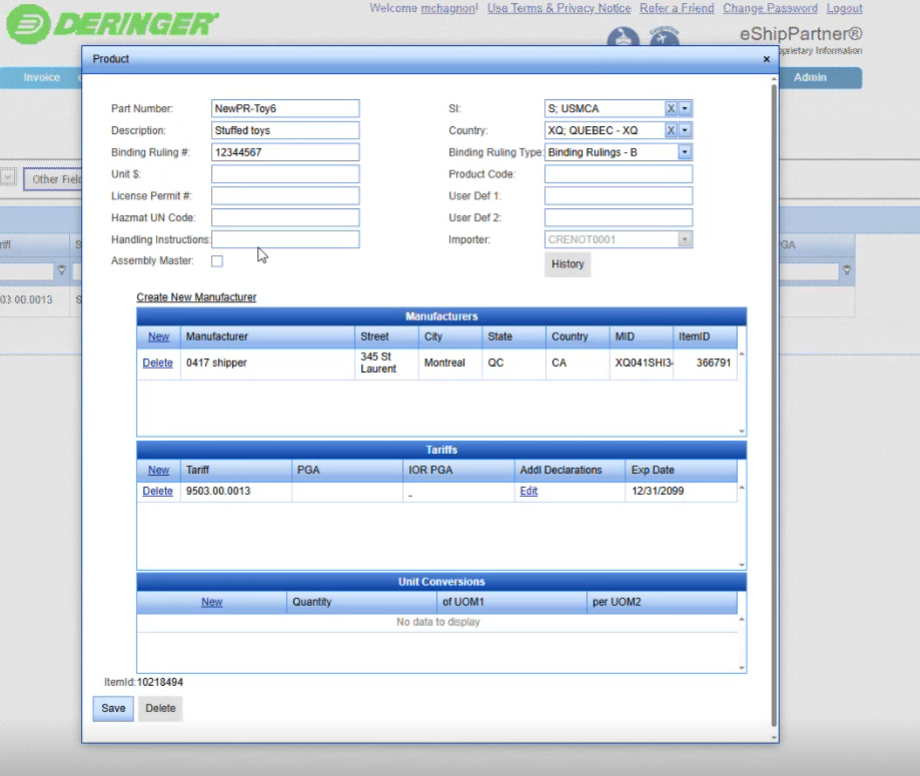
In order to most effectively create your invoices, you should have products with product templates created within our products database.
That way when you create your invoices, it's all Point and click. Most of the data will pull in for you.
To get started with creating products, we just click on the Products tab at the top of the main menu after logging into the system.


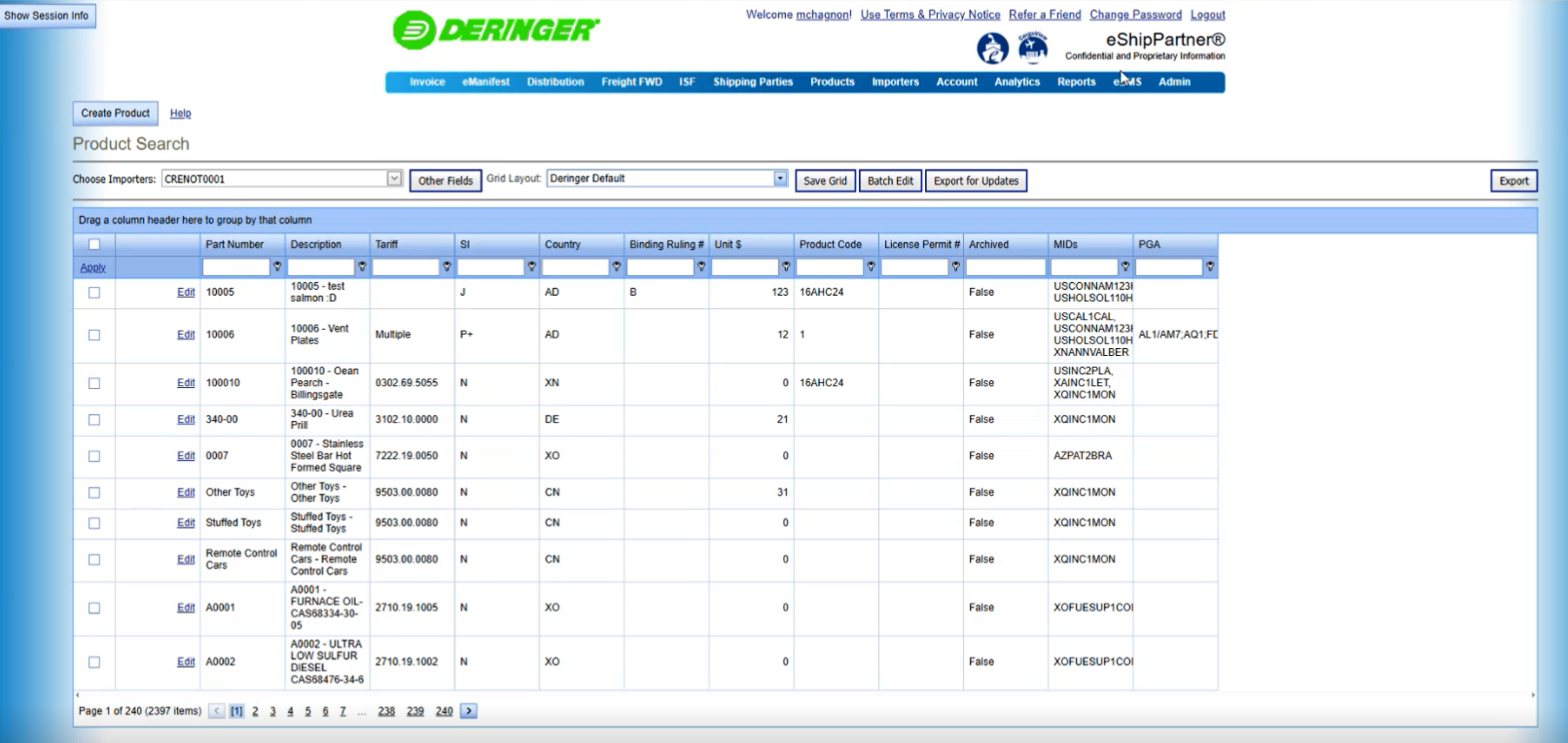
Type in the Importer you want to work with in the CHOOSE IMPORTER field.
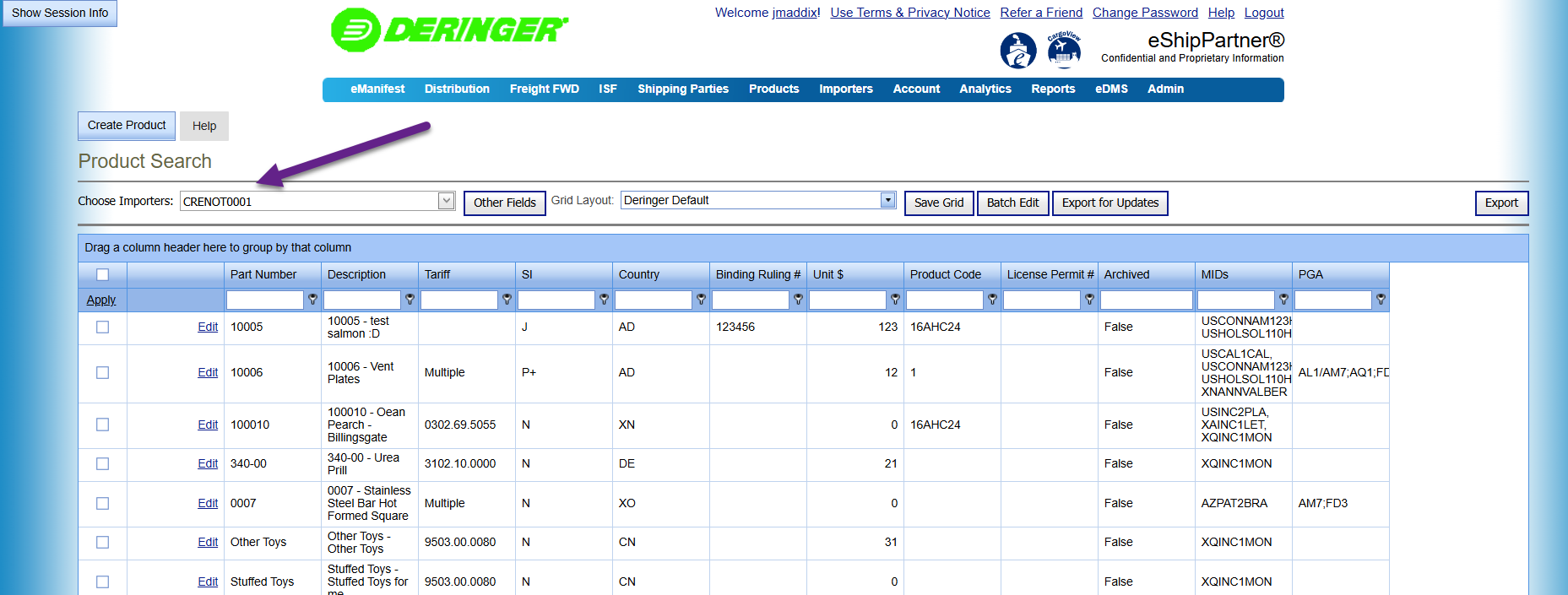
Products will show up; if this is a new account, there will be no products, the grid will be empty.
Edit a Product
You can click on the Edit link to edit a product.
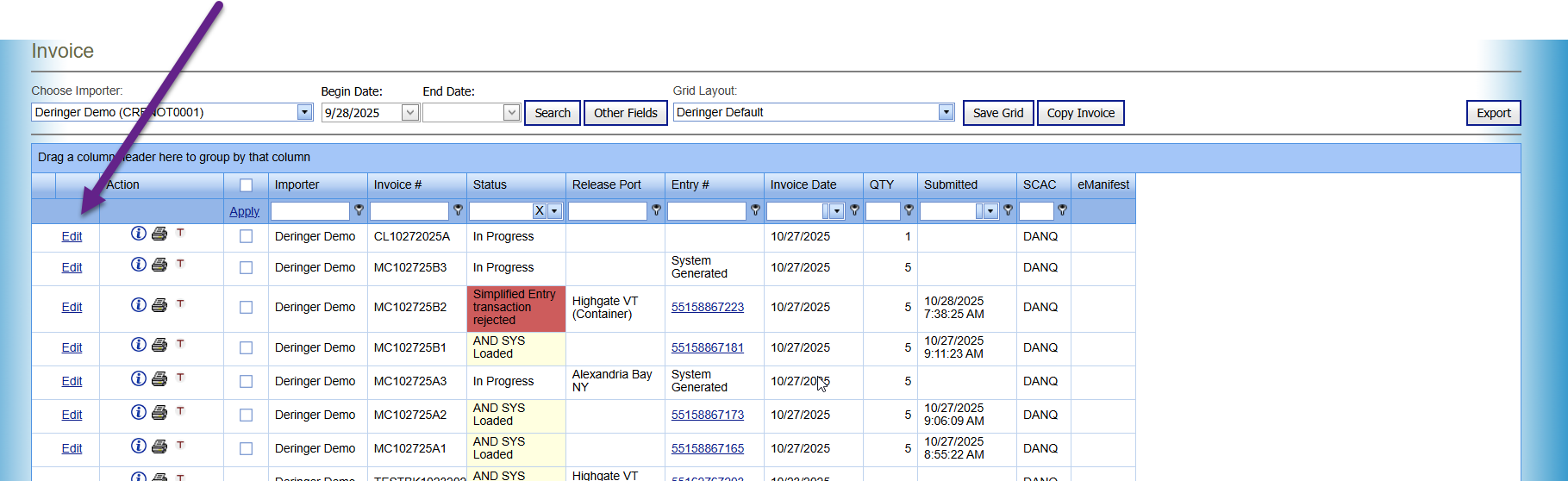
When you click on the Edit link for a product, the Product edit form will popup.
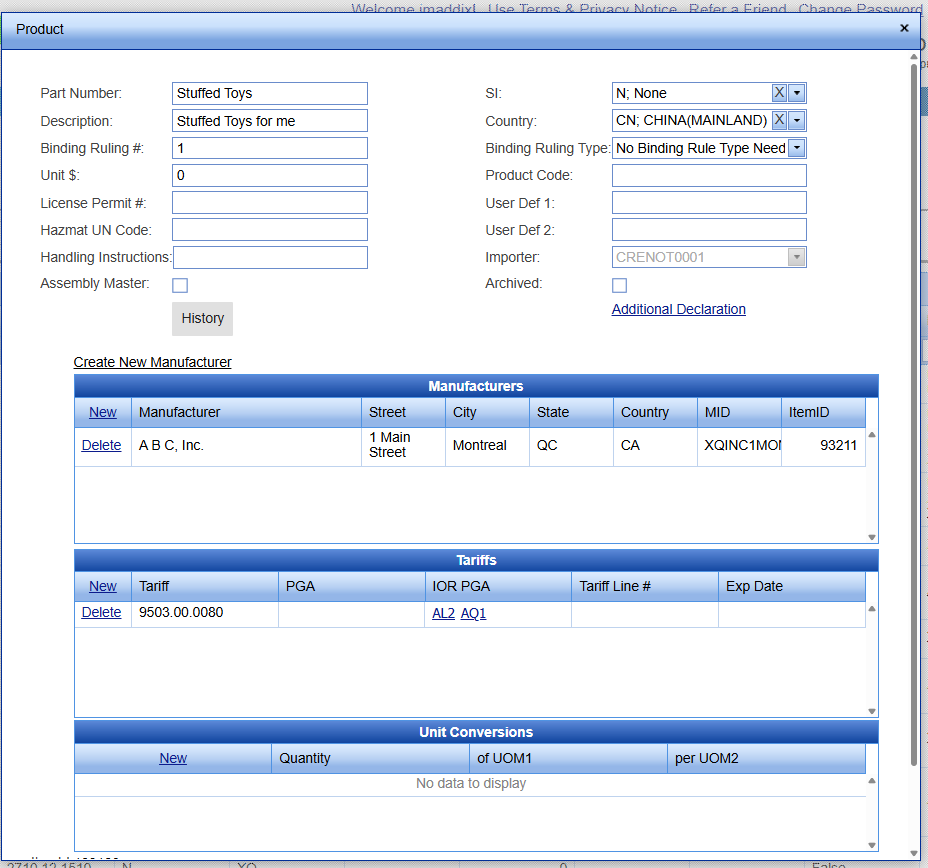
You now have the ability to edit anything within the details of the product. Once you're done making your changes then you would just click on save.
Your changes would be saved and you can then use that part on a invoice. You can also delete your changes by clicking the Delete button. Once you have Saved it, click on the Close button on top left corner to close the Edit form.
Create a New Product
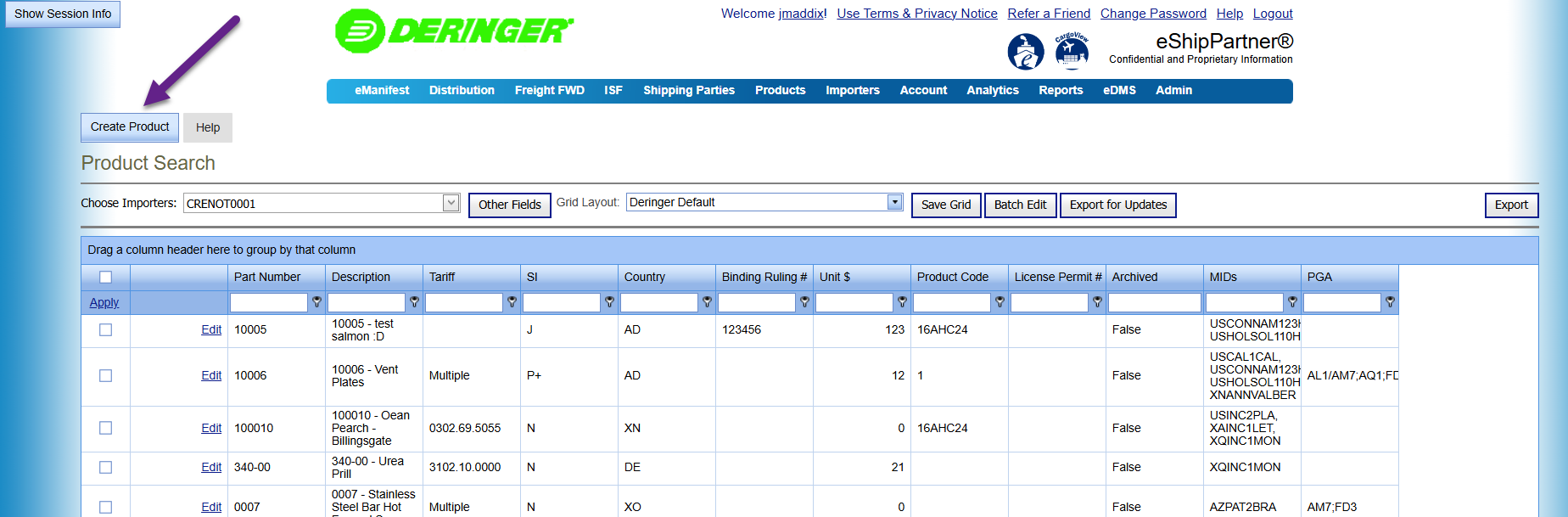
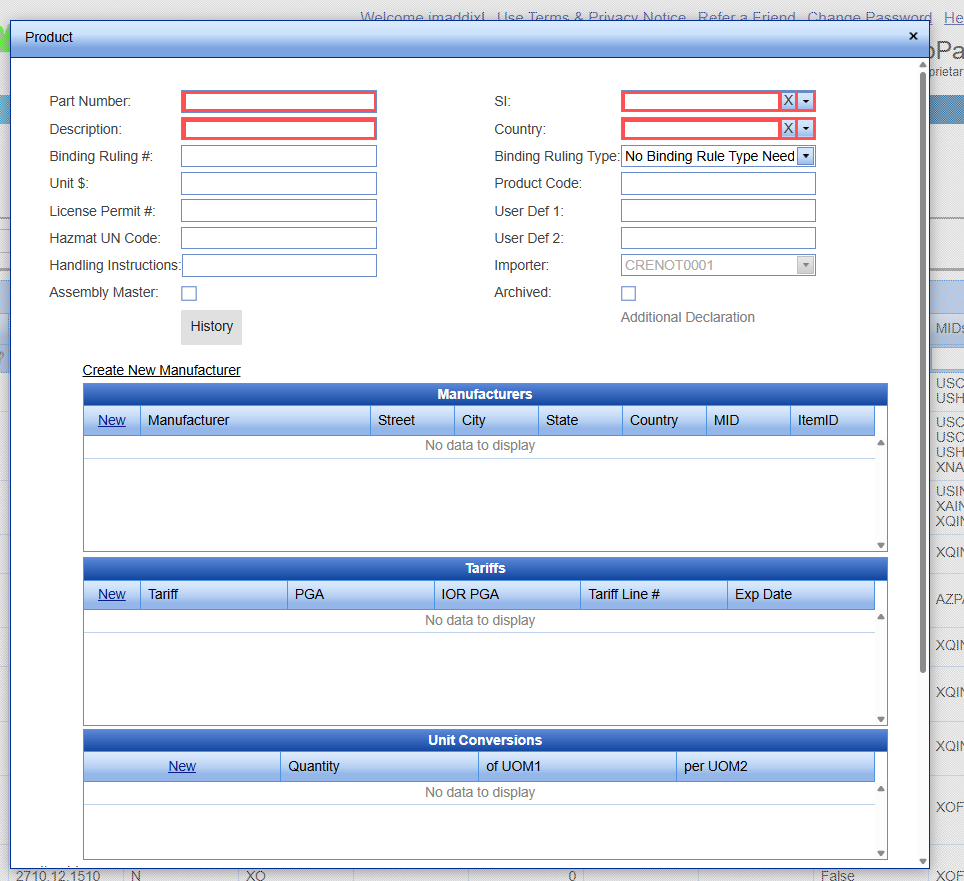
Clicking on the Create Product button brings you up a blank template. At the top you see that there are some fields that are highlighted in red. That means that those fields are required.
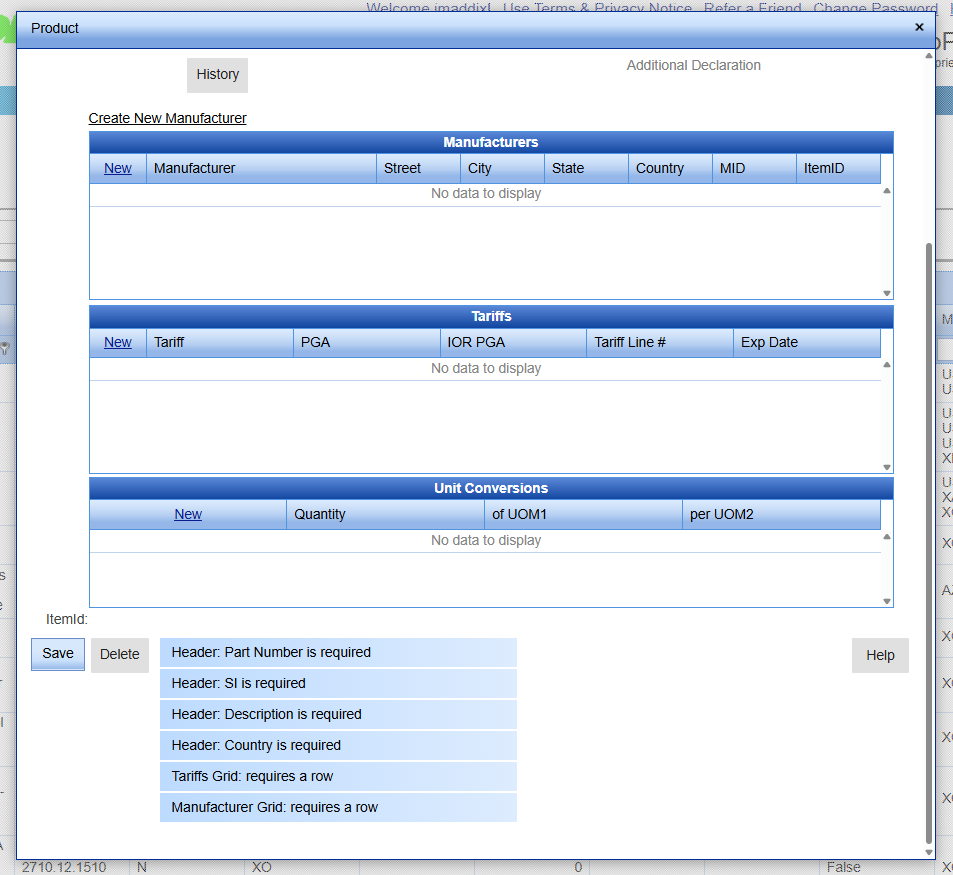
And then down at the bottom you also see some messages indicating that there are other fields required but those particular blocks are not highlighted in red.
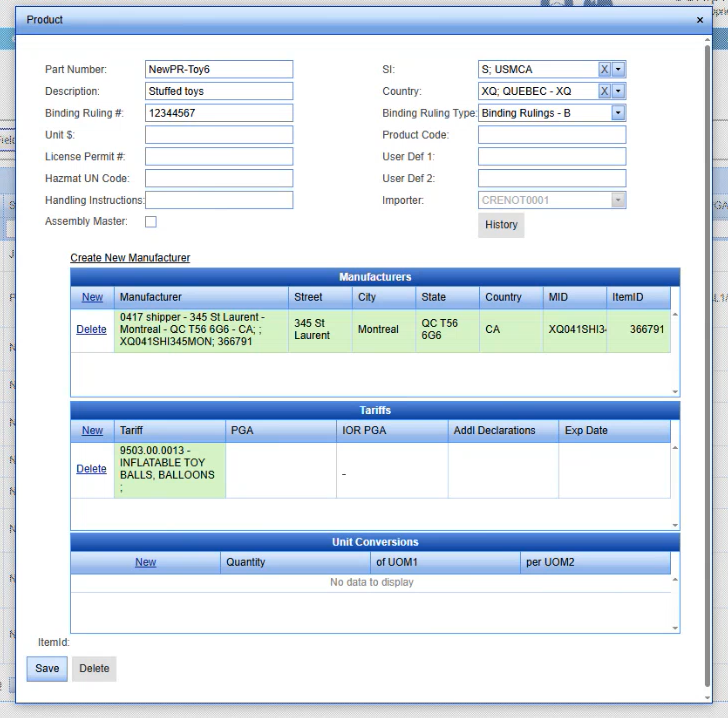
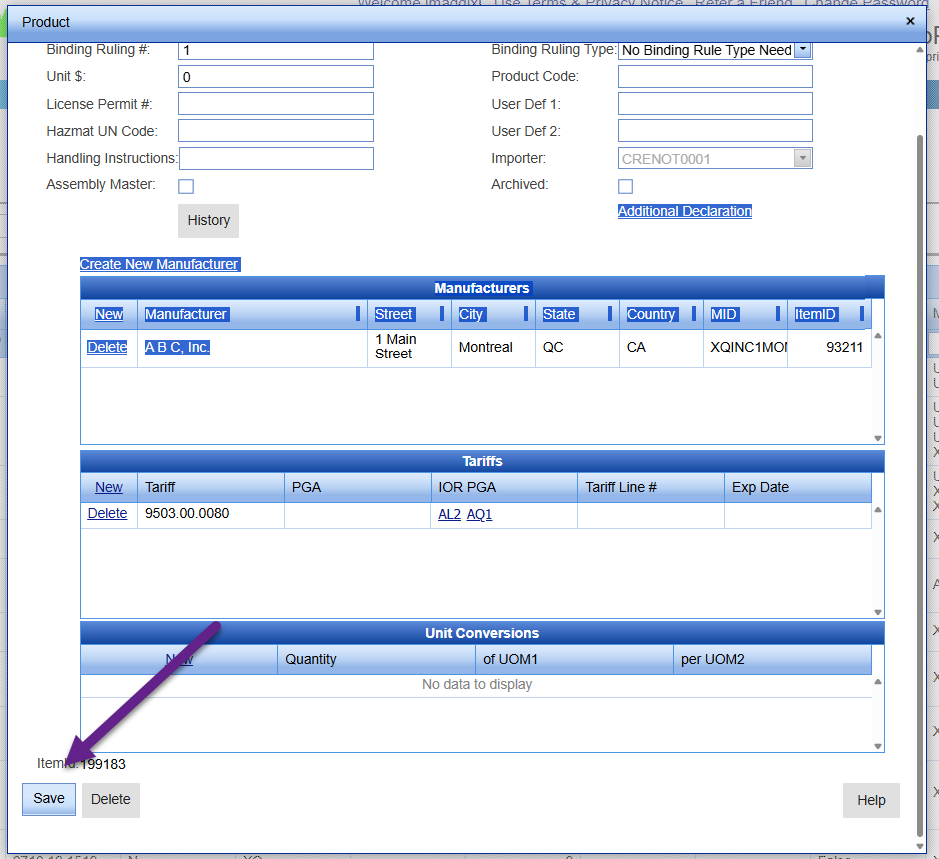
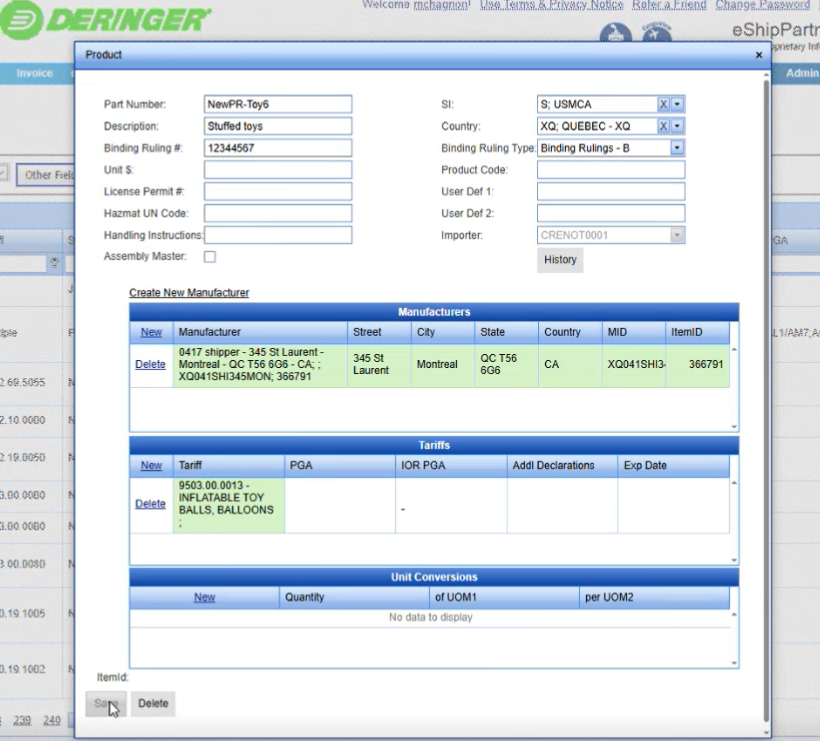
Click on the SAVE button. And when you do that, you will notice that in the tariff area, some of the other columns are going to populate like the expiration date on that particular tariff.
If you had additional declarations at this point that you needed to report on that product, you would click on Edit and go in there and add them in. This will be shown in another training section. If there were any PGAS that apply to that tariff, like FDA or Lacey or TSCA, etc, those particular PGA codes would be listed in the PGA column.
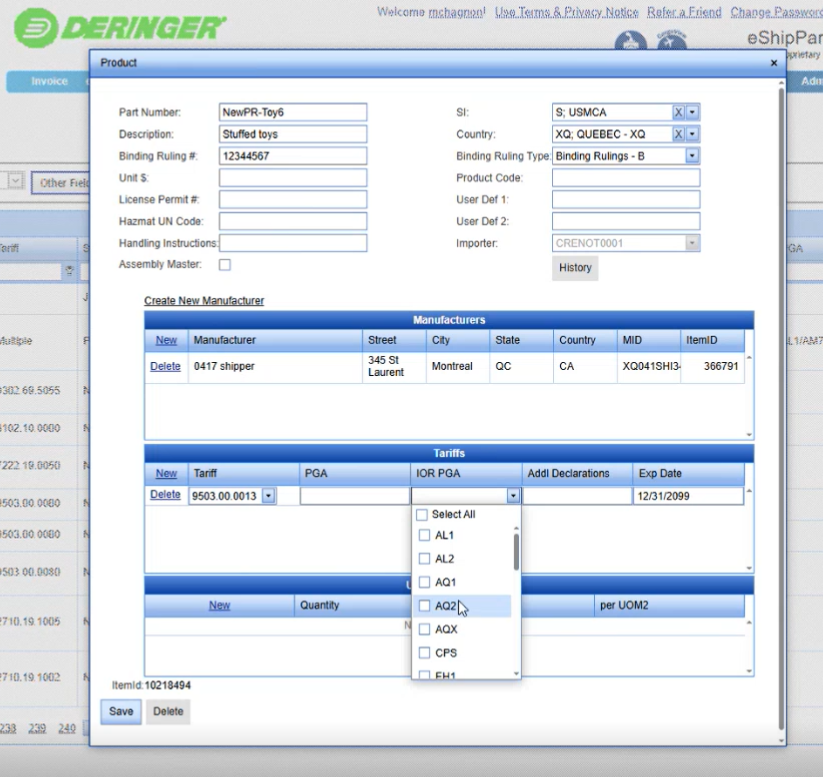
And if we had an IOR PGA that we needed to assign to the particular product, we would just click on the drop down and let's say we wanted to force a PGA all the time, every time we shipped. The product we would select whatever PGA it is.
If we wanted to say TSCA is always required, we would check off EP8 meaning TSCA is required.
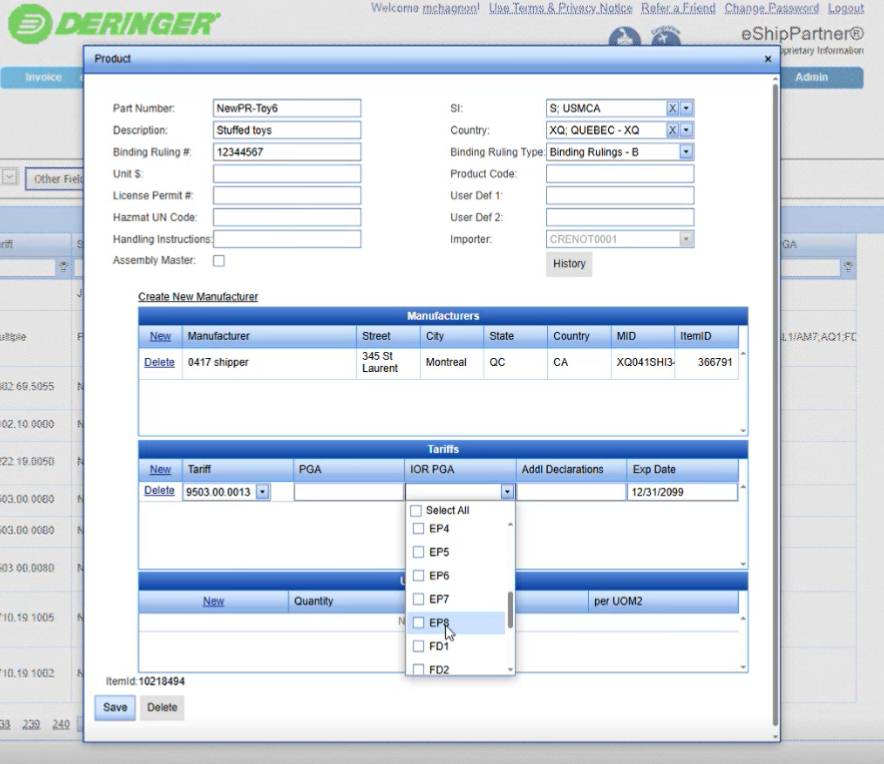
And when we save it and we use this part on a line item, it would prompt the user with the TSCA form. At this point in time we can just close it out and we should go back to our grid and we should be able to find new Product.
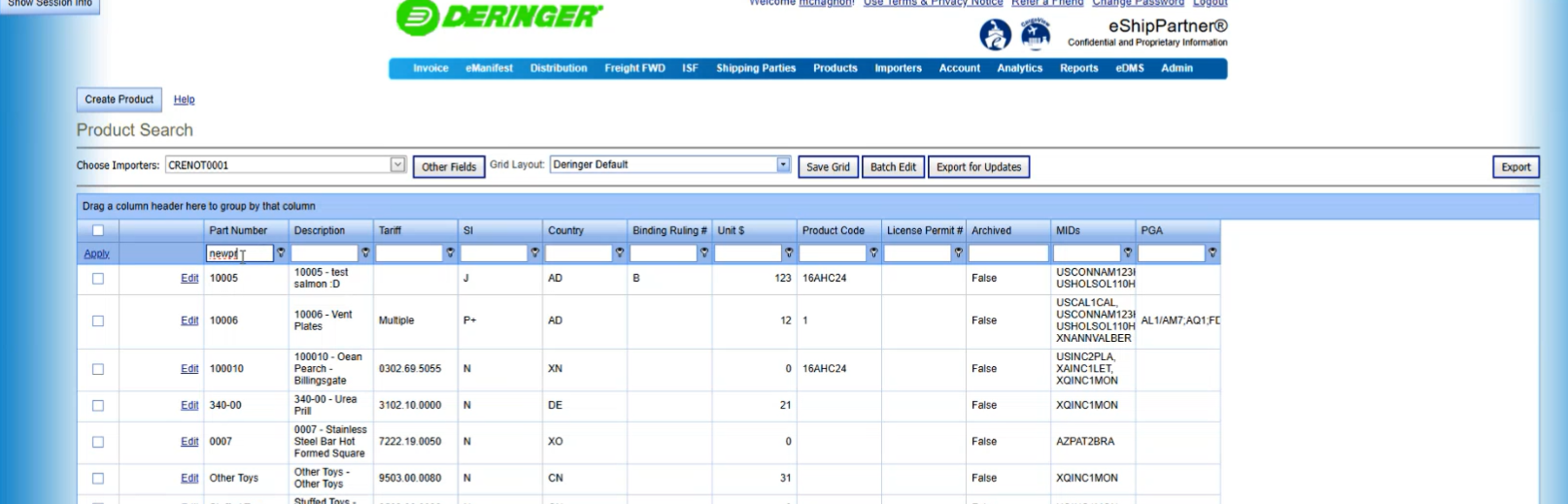
Type in the new product name in Part Number….
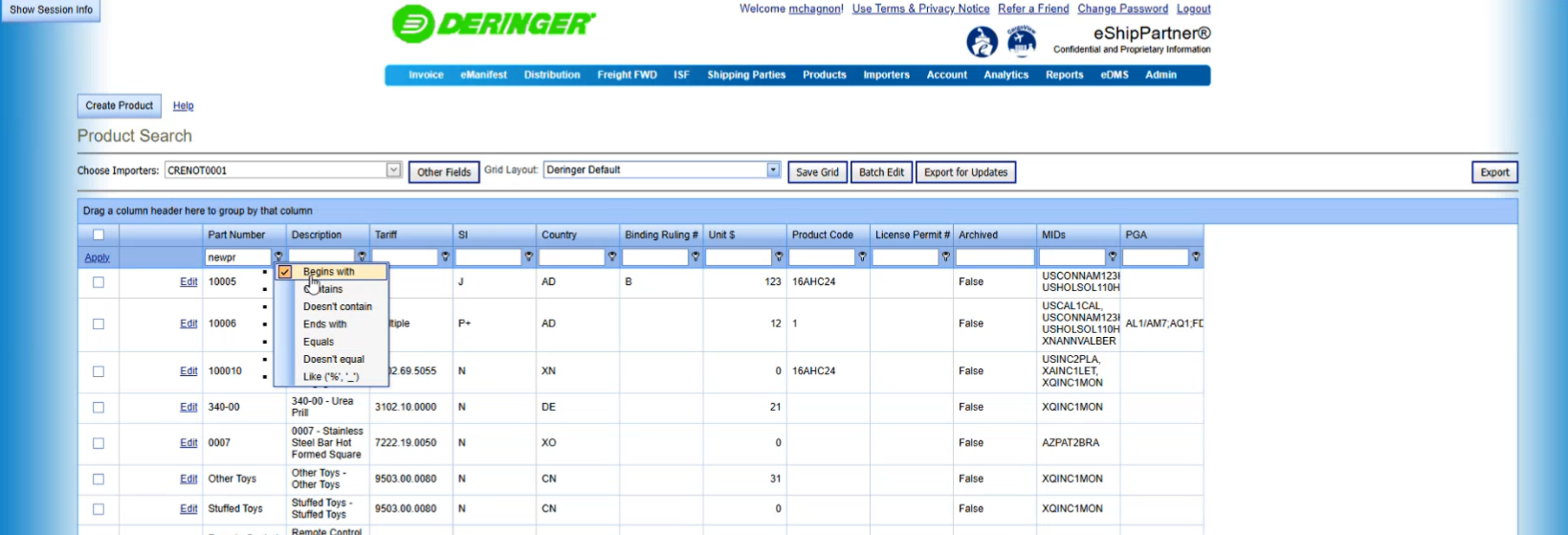
If we click on the key you can use begins with. If I click on apply I should see all the products that are new PR with the prefix on them.
Then you should see all the products that begin with NEWPR.
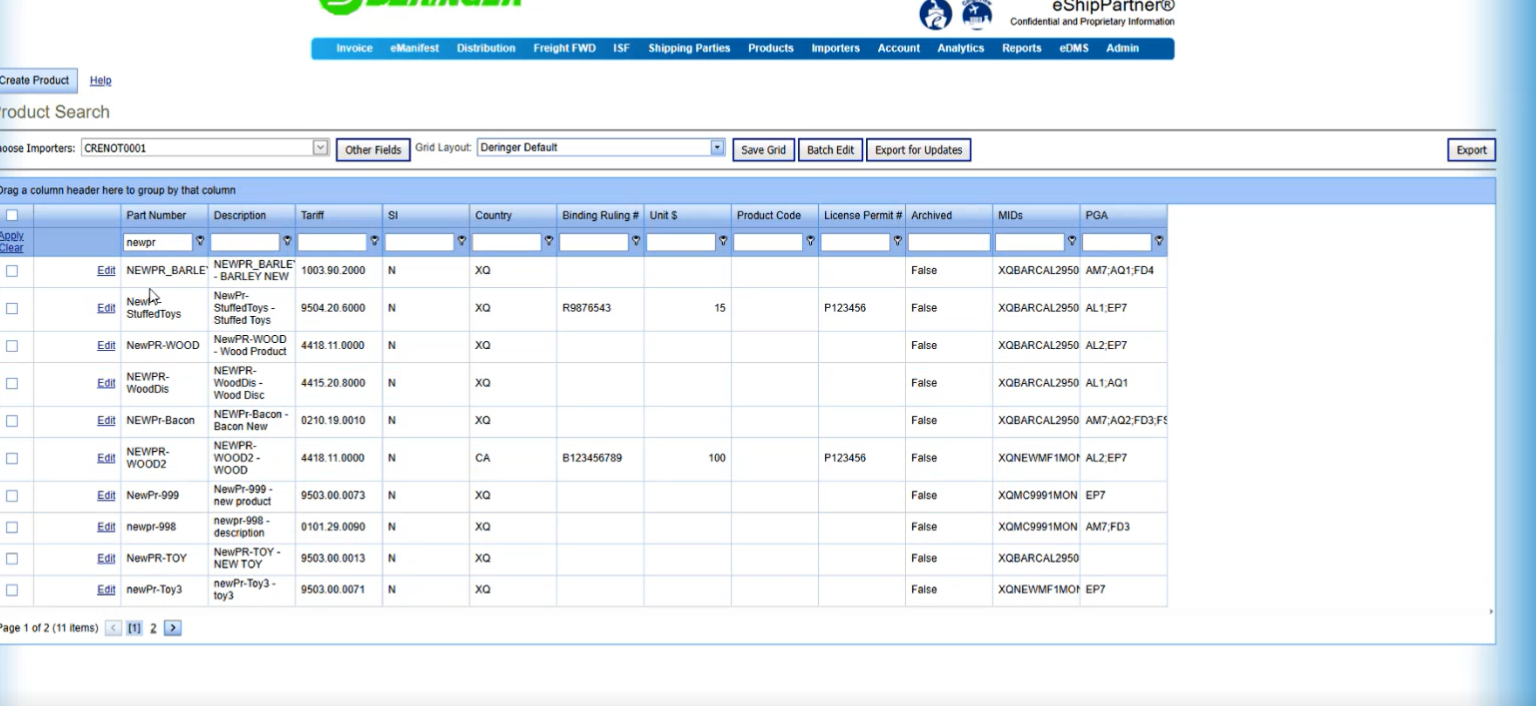
NewPR-Toy6 is the part we just added.
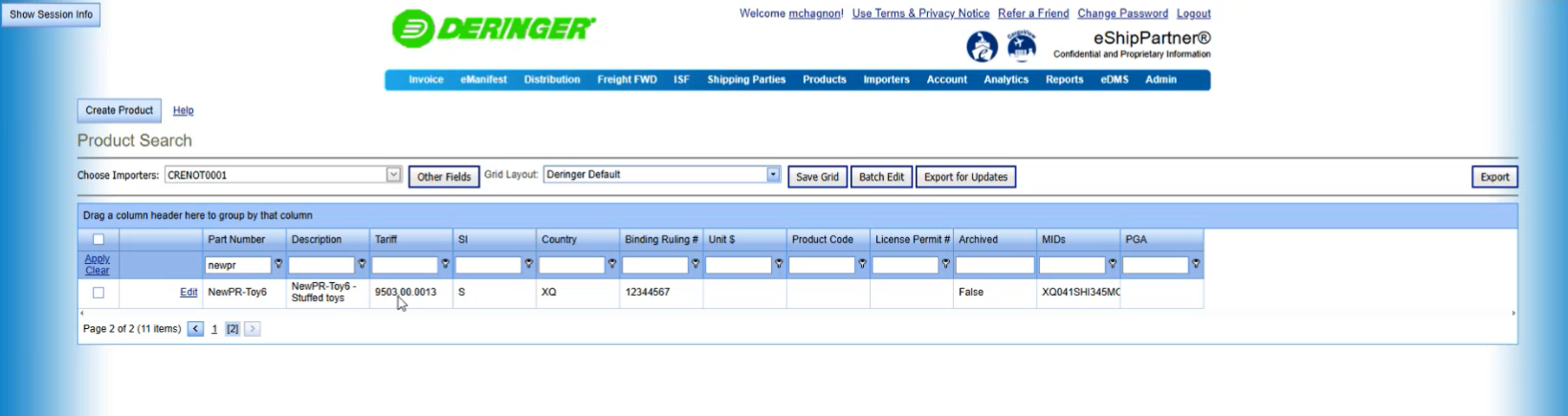
If we want to edit that part, we simply click on the Edit button just to the left of the Part Number and the Product Edit box will appear.